

Your profile picture is the small image people see next to your name, and for a blogger it travels further than the profile page. The steps below come from Pinterest’s Edit your profile page, read on 12 November 2026, for a computer and for the app, with the personal and business versions. What to put in the picture is covered after the steps, and the rest of the profile is in our profile ideas for a blogger on Pinterest (opens in a new tab).
Choose the picture before you change it
Pinterest’s Claim your website page says that whenever an image from your claimed website is saved, your profile picture will appear alongside the Pin, and the Pin will link to your Pinterest profile. So the picture is part of how readers recognize your Pins, not only your profile.
For a blog, two choices work well: your logo, when the blog is a brand, or a clear photo of you, when readers follow you as a person. Use the same image on your blog and your newsletter so readers connect them.
The Pinterest help pages read for this guide give no size or file format for the profile photo. The only profile image size they give is for the profile cover of a business account, at least 800 pixels wide by 450 pixels tall. Start from a square image with the subject in the middle, and check that it still reads when it is small.
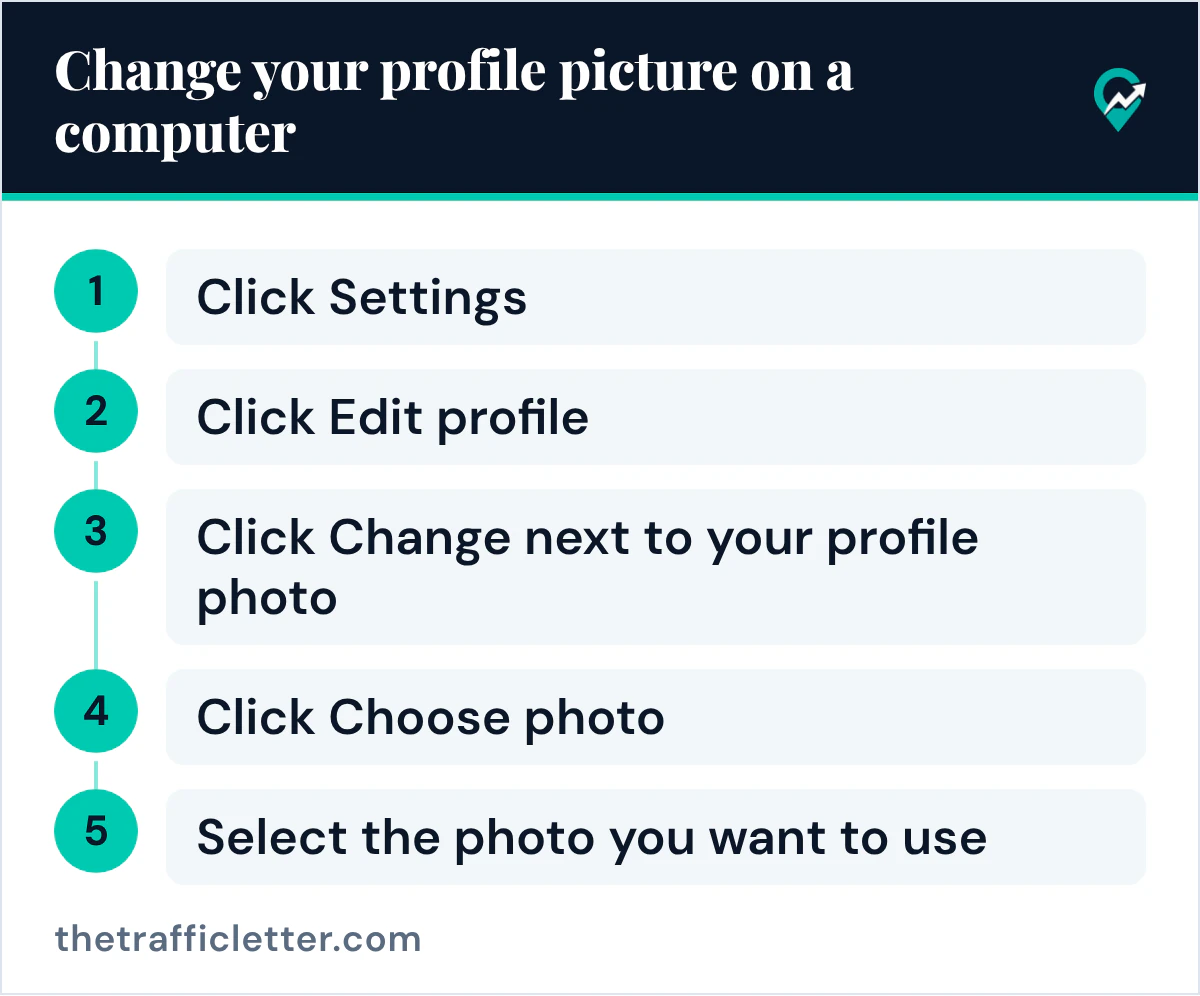
How to change your profile picture on a computer
Pinterest gives these steps:
- Log in to your Pinterest account.
- Click the more-options-refresh icon at the bottom left of your screen.
- Click Settings.
- Click Edit profile.
- Click Change next to your profile photo.
- Click Choose photo to select a photo from your computer.
- Select the photo you want to use.
The page says your photo will be updated right away.
How to change your profile picture in the Pinterest app
With a personal account:
- Open the Pinterest app and log in to your account.
- Tap your profile photo at the bottom-right corner of your screen.
- Tap your profile photo at the top-left of your screen.
- Tap View profile, then Edit profile.
- Tap Edit under your profile photo.
- Tap Update profile picture.
- Select a photo from your device’s gallery and tap Done, or tap the camera icon to take a new photo and tap Save.
The page shows a second app version where the choices read Take a photo, then Use Photo, or Pick from camera roll, then Choose.
Change the picture on a business account
In the app, a business account takes a shorter path. Pinterest’s page gives these steps:
- Open the Pinterest app and log in to your account.
- Tap your profile photo at the bottom-right corner of your screen to open your profile.
- Tap Edit profile under your profile photo.
- Tap Update profile picture.
- Select a photo from your device’s gallery and tap Done, or tap the camera icon to take a new photo and tap Save.
A business account can also add a profile cover. Pinterest’s Add a profile cover page says the image must be at least 800 pixels wide by 450 pixels tall and recommends a horizontal image with a 16:9 aspect ratio; our guide to adding a Pinterest banner (opens in a new tab) has the steps. If you do not have a business account yet, our guide on switching to a Pinterest business account (opens in a new tab) covers the setup.
Who sees your profile picture
Pinterest’s Edit your profile page says that if your profile is public, anyone will be able to see the information you share on it, and that a private profile is only visible to people you invite to follow you. The Make your profile private or public page adds that business profiles are always public, and that private profiles won’t appear in search results on Pinterest or in search engines. If your blog counts on Pinterest for traffic, keep the profile public and treat the picture as something strangers will see first.
Right after
- Edit the About text on the same Edit profile screen, with the ideas in our guide to writing a Pinterest bio for a blog (opens in a new tab).
- Claim your blog so your picture appears on Pins saved from it, following our steps for claiming your blog domain on Pinterest (opens in a new tab).
- See where the profile fits in a full publishing routine in our routine that turns Pins into blog visits (opens in a new tab).