


A Pin can leave a board in two ways: you delete it, or you move it somewhere that suits it better. The steps below come from Pinterest’s help pages read on 11 November 2026, and they are followed by the bulk options and what a blogger should think about before deleting a Pin that sends visitors to a post. They fit into our wider method for keeping a blog’s boards in order (opens in a new tab).
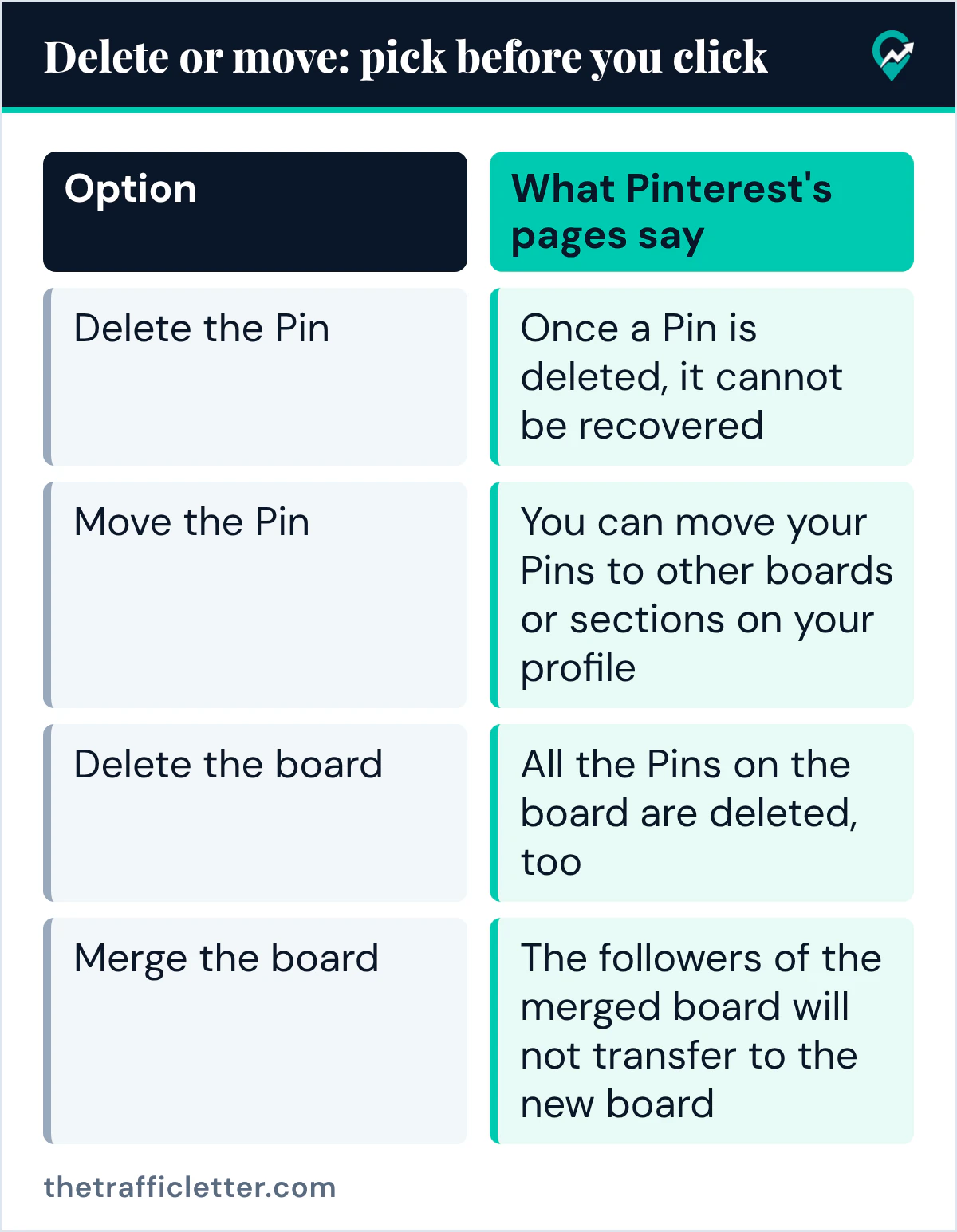
Delete or move: pick before you click
Pinterest’s Edit or delete a Pin page says you can edit and delete the Pins you have created and saved, and it warns that once a Pin is deleted, it cannot be recovered. Moving keeps the Pin on your profile, in another board or section.
| Option | What Pinterest’s pages say |
|---|---|
| Delete the Pin | Once a Pin is deleted, it cannot be recovered |
| Move the Pin | You can move your Pins to other boards or sections on your profile |
| Delete the board | All the Pins on the board are deleted, too |
| Merge the board | The followers of the merged board will not transfer to the new board |
If the Pin links to one of your blog posts, consider moving it to a board that matches the post: the Pin stays on your profile, and you can move it again later, while a deleted Pin cannot be recovered.
How to delete a Pin from a board on a computer
Pinterest gives these steps:
- Log in to your Pinterest account.
- Click your profile picture at the top-right of your screen.
- Look through your Pins until you find the Pin you want, and click it to open it.
- Click the ellipsis icon, then select Edit Pin.
- Click Delete at the bottom-left corner.
- Click Delete again to confirm.
How to delete a Pin in the Pinterest app
- Open the Pinterest app and log in to your account.
- Tap your profile picture at the bottom-right of your screen.
- Find the Pin and tap it to open it.
- Tap the ellipsis icon in the top-right corner of the Pin, then tap the edit option.
- Tap Delete this Pin or the trashcan icon at the bottom of the screen.
- Tap Delete to confirm.
How to move a Pin to another board instead
To move a single Pin on a computer, Pinterest’s Move Pins page says to open one of your boards, click the edit icon at the left corner of the Pin, click the directional chevron down icon next to Board or Section, choose where the Pin should go and click Save. In the app, open the Pin from the board, tap the ellipsis icon, select Edit Pin, tap the name of the board the Pin is in, pick the new board or section and tap Done.
How to remove many Pins from a board at once
The same page describes moving Pins in bulk. On a computer:
- Open your profile and click the board.
- Click Organize at the top of your board.
- Select all of the Pins you want to move, then click Move at the top of your Pins.
- Click Save next to the name of the board you want to move them to.
In the app, tap the board, tap Organize, select the Pins, tap the arrow icon at the bottom of your screen (the page names a directional-arrows-horizontal icon or a right-arrow icon, depending on the app), then select the board or section. The pages read for this guide describe bulk moving, not bulk deleting.
If every Pin of a board should go elsewhere, merging moves them in one step. Pinterest’s Merge boards and sections page says to open the board, click the ellipsis icon, select Merge, pick a board to merge with and click Move Pins and Delete Board. To undo a merge, the page says you need to create a new board or section and move the Pins there, one by one.
Removing Pins by deleting the whole board
Deleting a board (opens in a new tab) is the most drastic option. Pinterest’s Archive or delete a board page says that when you delete a board, all the Pins on the board are deleted too, and that you have seven days to restore it in the Recently deleted section, on desktop or Android only. If you only want the board off your profile, archiving hides it from your public profile and can be undone. Making it private is another option: our guide to hiding a board with the secret setting (opens in a new tab) has the steps.
Pins on a group board
On a board you share, the owner decides what collaborators can do. Pinterest’s group boards page says the setting Do (almost) everything lets collaborators add, move and delete Pins and sections, while Save and comment lets them save and organize Pins, comment and react.
Right after
- Check the board you cleaned: if it now holds few Pins, it may work better as a section of a larger board.
- When a Pin moved to a new topic, consider giving that topic its own board, with the steps in our guide to setting up a new board on Pinterest (opens in a new tab).
- See where boards fit in a full publishing routine in our Pinterest blog traffic system (opens in a new tab).