

Deleting a board takes a few clicks, and it takes every Pin on the board with it. The steps below come from Pinterest’s help pages read on 12 November 2026, followed by the seven-day restore window and the two softer options, archiving and merging. They belong to our wider method for keeping a blog’s Pinterest boards in order (opens in a new tab).
Before you delete a board
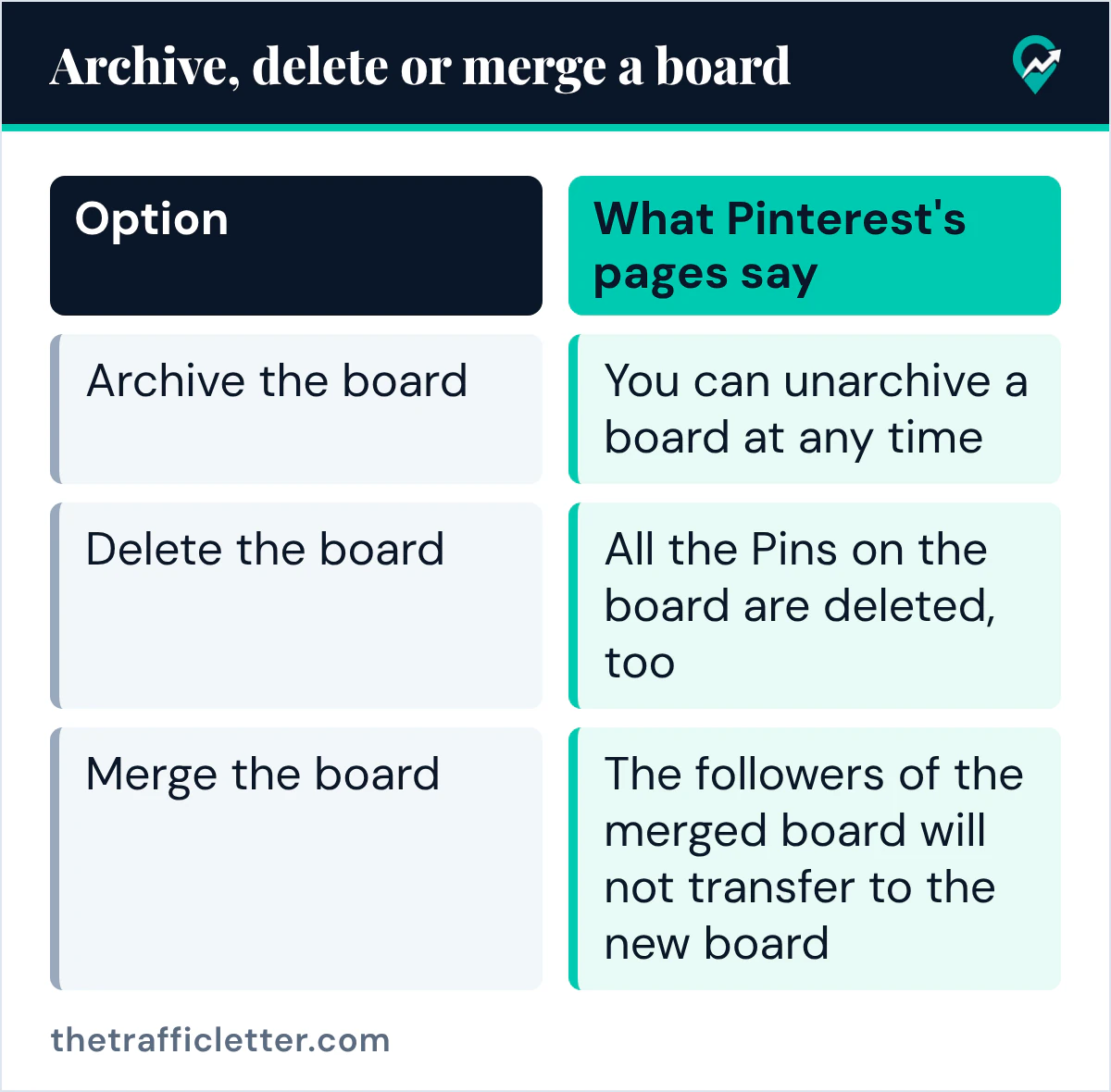
Pinterest’s Archive or delete a board page puts the choice simply: archive a board you might want to look at again someday, and delete it if you are sure you never want to see it again. It also warns that when you delete a board, all the Pins on the board are deleted, too.
| Option | What Pinterest’s pages say |
|---|---|
| Archive the board | You can unarchive a board at any time |
| Delete the board | All the Pins on the board are deleted, too |
| Merge the board | The followers of the merged board will not transfer to the new board |
For a blogger, the Pins matter more than the board. A Pin that links to one of your posts can keep sending visitors after the board it sits on stops making sense. Before deleting, move the Pins you want to keep: Pinterest’s Move Pins page says you can move your Pins to other boards or sections on your profile, one at a time or in bulk with Organize. Our guide to taking Pins off a board without losing them (opens in a new tab) has those steps.
How to delete a board on a computer
Pinterest gives these steps:
- Log in to your Pinterest account.
- Click the directional chevron down icon next to your profile picture at the top-right corner of your screen to open your profile.
- Click the board you want to delete to open it.
- Click the ellipsis icon next to the board name, then select Edit board.
- Click Delete at the bottom-left corner, then click Delete forever to confirm.
Edit board is the same menu where you change the board name, description and cover, so check that you opened the right board before you scroll to Delete.
How to delete a board in the Pinterest app
- Open the Pinterest app and log in to your account.
- Tap your profile picture at the bottom-right of your screen to open your saved tab.
- Tap Boards. With a business account, tap Saved.
- Tap the board you want to delete to open it.
- Tap the ellipsis icon at the top-right corner of your screen, then select Edit board.
- Scroll down and tap Delete, then confirm.
The help page shows two app versions of the last step: one says to tap Delete, then Delete again; the other says to tap Delete board, then Delete forever.
How to restore a deleted board within seven days
Pinterest’s page says that after you delete a board, you have seven days to restore it in the Recently deleted section, and that you can only restore a board on desktop or Android. On a computer with a personal account:
- Log in to your Pinterest account.
- Click your profile picture at the top-right of your screen.
- Click the Saved tab.
- Scroll down to the Recently deleted boards section.
- Click Restore Boards.
- Select the board and click Restore.
With a business account, the page says to open the Saved tab from your profile photo, scroll down to the Recently deleted section, click Restore boards, select the board and click Restore, and that a business account can only restore a board on a desktop device. In the Android app, tap your profile picture, tap Boards, scroll down to the Recently deleted section, tap Restore, tap the board and tap Restore again.
Archive a board instead of deleting it
When a board is out of season or off your current topic, archiving keeps it without showing it. Pinterest says an archived board is found at the bottom of your profile, below your boards, does not show up in your public profile, and cannot receive new Pins. You can unarchive it at any time.
On a computer, open the board, click the ellipsis icon next to the board name, select Archive and click Archive again to confirm. In the app, open the board, tap the ellipsis icon at the top-right corner, select Archive board and tap Archive to confirm.
If you want the board to stay usable but hidden from others, the secret setting is another route: Pinterest’s Private boards page says only you and anyone you invite can see your private boards. Our guide to making a Pinterest board secret (opens in a new tab) has the steps.
Merge a board to keep its Pins
When two boards cover the same topic, merging moves every Pin of one board into the other and removes the first board. Pinterest’s Merge boards and sections page says to open the board, click the ellipsis icon next to the board name, select Merge, pick a board to merge with and click Move Pins and Delete Board. In the app, tap the ellipsis icon on the board, select Merge (or Merge boards), select a board and tap Merge.
The page lists three things to know first: the followers of the merged board will not transfer to the new board, a secret board merged with a public board takes the privacy settings of the destination board, and undoing a merge means creating a new board or section and moving the Pins back one by one.
Right after
- Look at your profile from a visitor’s side: if a topic now has no board, our guide to creating a Pinterest board from scratch (opens in a new tab) walks through the create form.
- Rename the boards that stay so they match what readers search for, with our naming boards for Pinterest search (opens in a new tab).
- Once the boards you keep are in order, send the ones worth showing to readers with our steps for sharing a Pinterest board (opens in a new tab).
- See where boards fit in a full publishing routine in our step-by-step Pinterest traffic routine (opens in a new tab).