

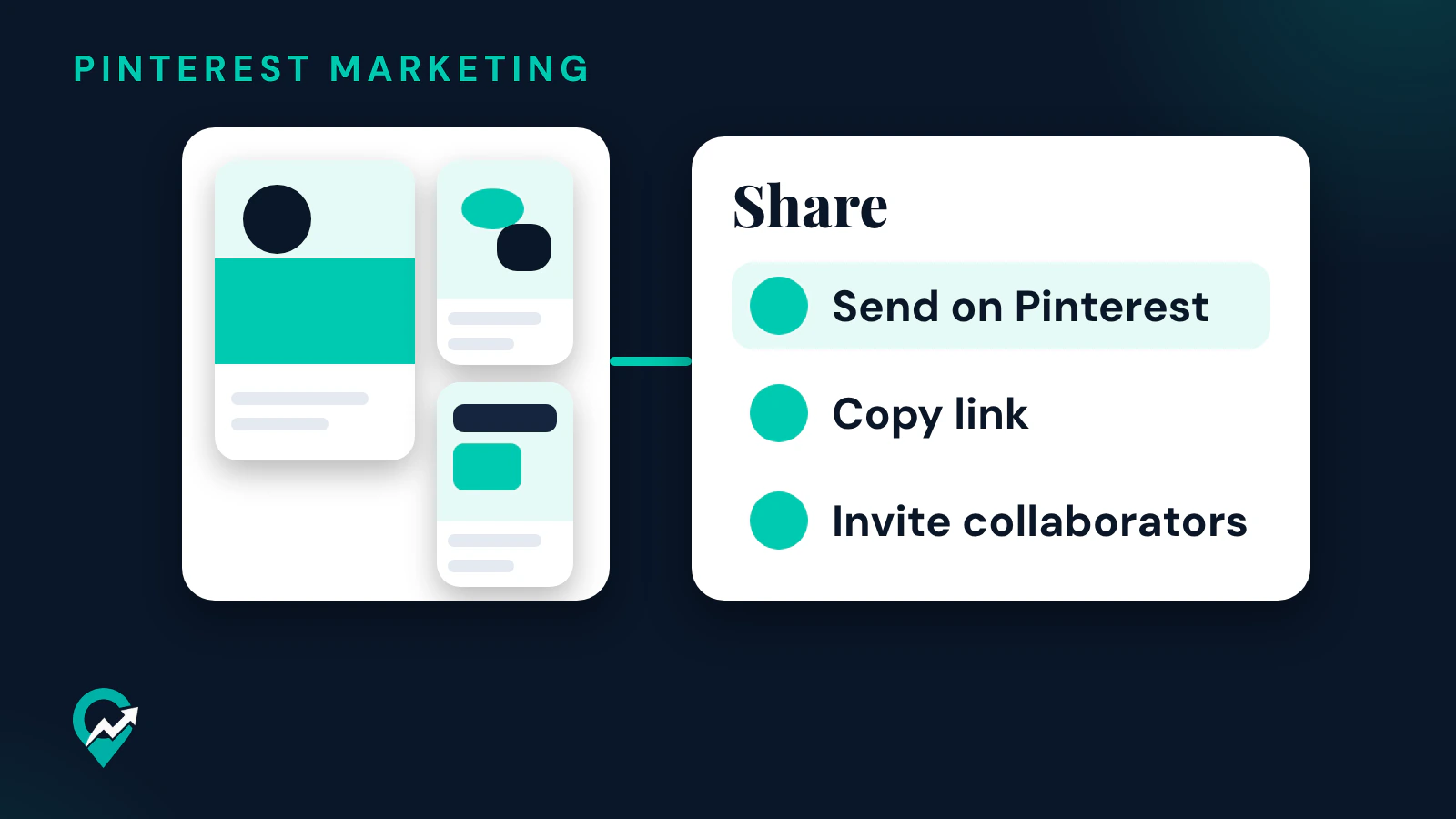

A board you share can bring people to a whole topic of your blog at once, not to a single Pin. Pinterest’s help pages describe several ways to do it: send the board to people on Pinterest, copy its link for any app, post it to a social network, turn it into a board video, or invite collaborators. The steps below come from those pages, read on 12 November 2026. They fit into our wider method for structuring the boards of a blog (opens in a new tab).
Pick the way to share before you start
The right option depends on who should see the board and what they should be able to do with it.
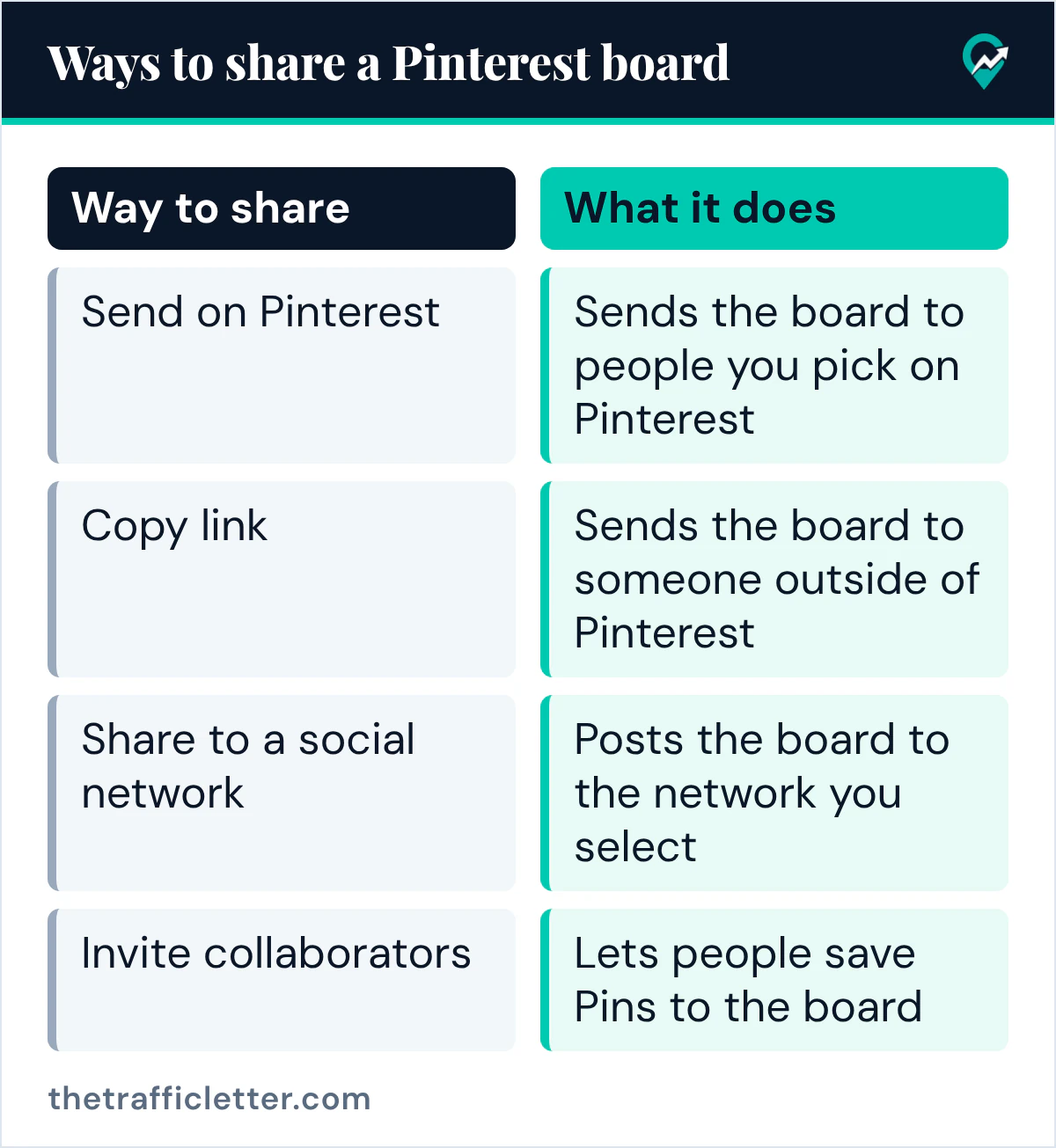
| Way to share | What it does |
|---|---|
| Send on Pinterest | Sends the board to people you pick on Pinterest |
| Copy link | Sends the board to someone outside of Pinterest |
| Share to a social network | Posts the board to the network you select |
| Invite collaborators | Lets people save Pins to the board |
Check the board first. A board you plan to share should have a clear name built on the words your readers search for. Our Pinterest board name ideas (opens in a new tab) and our guide on researching the words people type on Pinterest (opens in a new tab) help with that step.
How to send a board on Pinterest from a computer
Pinterest’s Share Pins, boards, and profiles page gives these steps:
- Click the board to open it.
- Click the share icon above the Pins.
- Search your contacts by entering someone’s name or email in the search bar, or select suggested people on Pinterest.
- Select your recipients and click Send.
The same page notes that teens have limited options for how they send and receive messages.
How to share a board link in the Pinterest app
For one of your own boards, the page describes these steps in the app:
- Tap your board to open it.
- Tap the directional arrow right icon next to Your saves.
- Tap the share icon at the top of your screen.
- Swipe across your screen to share a board link with people on Pinterest or through a third-party app.
- Select your recipients and tap Send.
One of the app versions on the page also shows the link icon, Copy link, to send the board to someone outside of Pinterest. Pasting that link in an email, a newsletter or a blog post lets readers who are not on Pinterest open the board. To share someone else’s board, open it, tap the share icon at the top of the screen, pick people and tap Send.
How to share a board to a social network
Pinterest’s page on sharing to social networks gives the computer steps: log in, click your board to open it and click the share icon at the top-right, select the social network you want to share the board to, then follow the steps to log in, write a description and share the board. In the app, tap the board, tap the share icon at the top-right of the screen, then select the network, or tap the ellipsis icon for more options.
When you write that description, say what a reader will find on the board in plain words. The board link does the rest.
Share a board as a video
In the app, Pinterest can turn a board into a video for an Instagram Story or a file you download and post anywhere. The page sets the limits: this is only available for public boards with five or more Pins, and the maximum number of Pins that can be included in a video is 14. The page also says that at the moment it is not possible to select the order of the Pins in the video or to include video Pins in it.
To make one, open the board, tap the share icon to preview the board video, tap the pencil icon to choose a board template or edit the Pins picked for you, then tap Instagram Stories or Download. On the Instagram route, tapping Copy copies the board link so you can add it to your story as a sticker.
Share a board with collaborators
Sharing a link lets people look at a board. Inviting them makes it a group board they can add to, as our guide to Pinterest group boards (opens in a new tab) explains. Pinterest’s Create and manage group boards page says to open your board, click the plus circle icon below your board name, search by first and last name, username or email address and click Invite next to each person, or click Copy link and send it to the friends you want to add. They get an email or notification about the invite.
As the owner, you then pick what collaborators can do: Do (almost) everything lets them add, move and delete Pins and sections, and Save and comment lets them save and organize Pins, comment and react. You can also remove a collaborator later from the profile pictures below the board name.
Secret boards and private profiles
Pinterest’s Private boards page says only you and anyone you invite can see your private boards, so for a secret board the page describes two routes: invite friends to collaborate or make the board public. Our guide to making a board secret (opens in a new tab) explains the setting.
The profile setting matters too. Pinterest’s page on private profiles says the setting controls who can see your profile, boards and Pins, and that business profiles are always public. If you share boards to bring readers to your blog, a public business profile keeps them visible to the people you send them to.
Right after
- Clean up boards you no longer want to share before sending your profile around, with the steps to delete or archive a Pinterest board (opens in a new tab).
- Add a new board for a topic your readers ask about, following our guide to creating a new Pinterest board (opens in a new tab).
- See where boards fit in a full publishing routine in our plan for getting blog traffic from Pinterest (opens in a new tab).