

Pinterest lets you remove a follower from your own profile in a few clicks. The steps below come from Pinterest’s help pages read on 22 November 2026. This guide belongs to our profile guide for bloggers on Pinterest (opens in a new tab), and the profile is one part of the wider plan for Pinterest blog traffic (opens in a new tab).
Remove, block or go private: pick the right tool first
Pinterest’s Manage your following and followers page says you can remove followers and unfollow people, and that if you want to prevent someone from following or interacting with you on Pinterest, you can also block them. A third setting, the private profile, changes who can see your profile. The three do different jobs:
| Option | What Pinterest’s pages say it does | Where it is |
|---|---|---|
| Remove | Removes a follower from your Followers list | The ellipsis icon next to the follower |
| Block | Prevents someone from following you, messaging you, or interacting with your Pins | The ellipsis icon under their profile details |
| Private profile | Controls who can see your profile, boards, Pins and activity | Settings, then Profile visibility |
For a blog, removing is the light option: it cleans up one follower and leaves your profile open to everyone else. Blocking fits when one person keeps coming back. A private profile is the heavy option: Pinterest says private profiles won’t appear in search results on Pinterest or in search engines, which matters for a blog that wants visits from strangers.
How to remove followers on Pinterest on a computer
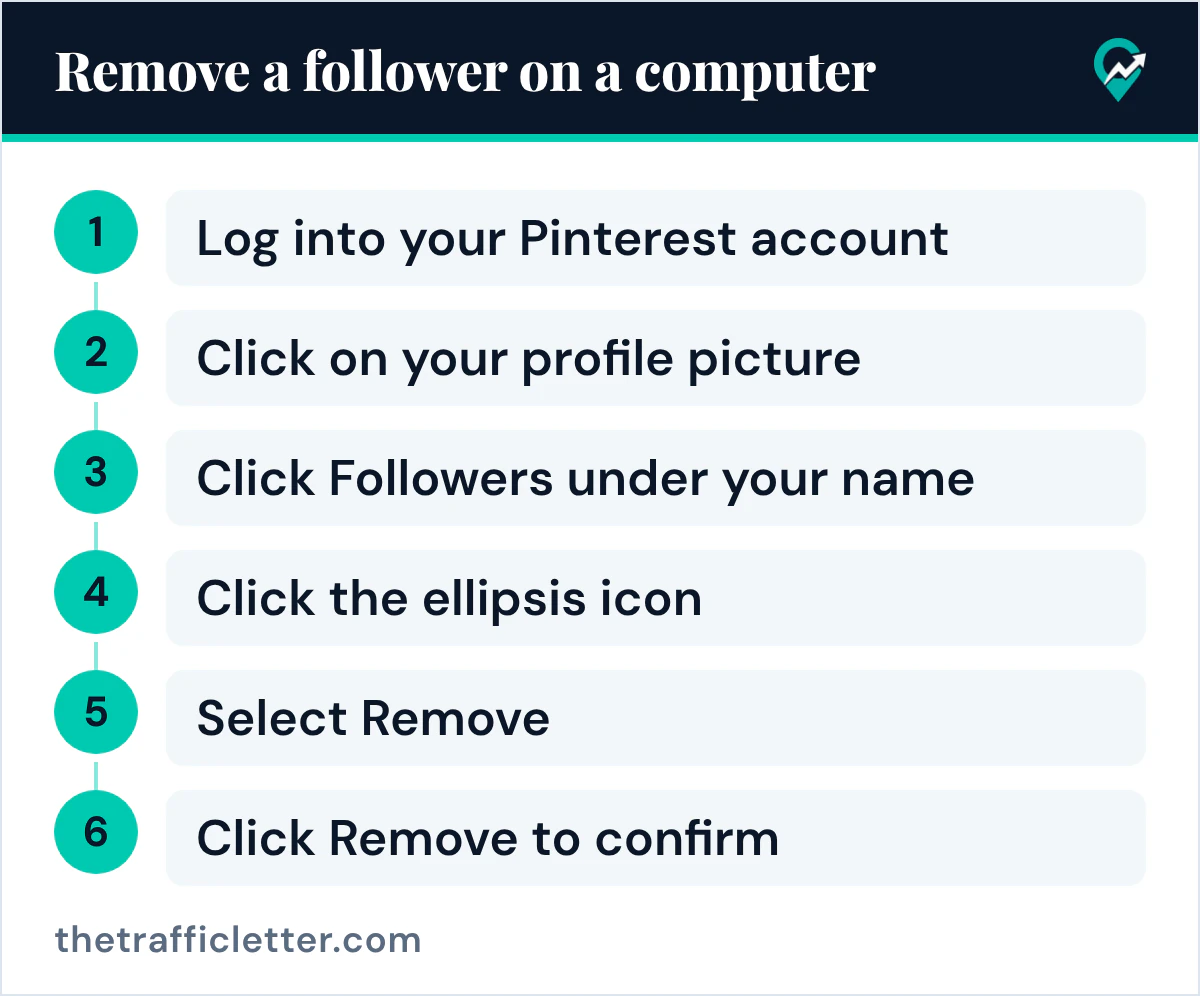
Pinterest’s steps on a computer:
- Log into your Pinterest account.
- Click on your profile picture at the top-right corner of the screen to go to your profile.
- Click Followers under your name to see your followers.
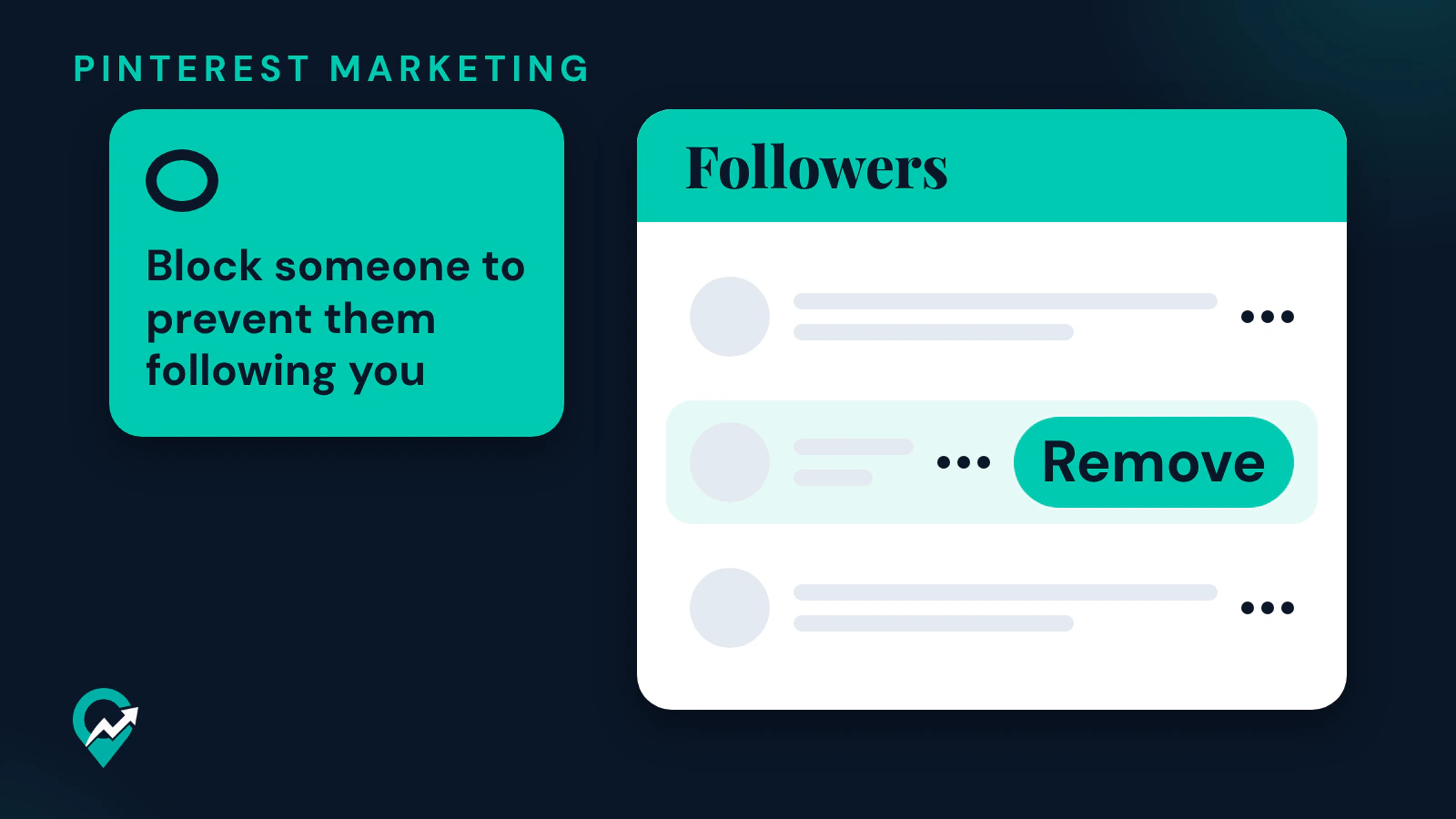
- Next to the follower you want to remove, click the ellipsis icon.
- Select Remove.
- Click Remove to confirm.
The second Remove is the confirmation step.
How to remove followers in the Pinterest app
The help page gives the same steps for the Android and iOS apps:
- Open the Pinterest app on your device and log in to your account.
- Tap your profile picture at the bottom-right of your screen to open your profile.
- Tap Followers under your name to see your followers.
- Next to the follower you want to remove, tap the ellipsis icon.
- Select Remove.
- Tap Remove to confirm.
Pinterest’s page describes removing followers one at a time. Read the name next to the ellipsis icon before you confirm: the page shows no step to undo a removal.
Block someone to prevent them following you
If the same person follows you again, blocking is the setting Pinterest names. Its Block or unblock someone page says to block a Pinterest profile to prevent someone from following you, messaging you, or interacting with your Pins. The steps on a computer:
- Open the profile of the person you’d like to block.
- Click the ellipsis icon under their profile details. On a business account, the ellipsis icon is located at the top-right corner of their profile.
- Click Block.
- Click Block again to confirm.
The same page says no one will ever receive a notification that you’ve blocked or unblocked them, and that they’ll only be alerted if they try to follow you or interact with your Pins. Their Pins will no longer show up in your home feed, though you might still see them in search results and group boards, and Pins you’ve already saved from them stay on your profile.
To undo it, the page says the Unblock option is under their profile details. You can also review the list in your settings: on a computer, click the cog icon at the bottom-left corner of your screen, click Settings, select Social permissions, scroll down to Blocked accounts and select Edit list. Other Pinterest help pages call the icon at the bottom left the more-options-refresh icon, so look for the icon that opens Settings.
When a private profile is the better fit
Pinterest’s Make your profile private or public page says you can set your profile to private or public to control who can see your profile, boards, Pins and activity. Private profiles won’t appear in search results on Pinterest or in search engines, but you can invite people you know to follow you. The page also says business profiles are always public: to make one private, you need to change it to a personal account first.
On a private profile, new followers come through the unique profile link you share. Pinterest’s Invite people to follow you page says each link will expire after three days or after it’s used by five people. Our guide to inviting followers to a private Pinterest profile (opens in a new tab) walks through that link, and our steps to make your Pinterest profile public or private (opens in a new tab) show where the switch is.
Right after
- Check the rest of the list with our steps to check your Pinterest followers list (opens in a new tab).
- Bring in the readers you want with our guide on how to get followers on Pinterest (opens in a new tab).