

A group board is a board that more than one person saves Pins to. For a blogger it can be a shared space with other writers in the same niche, a board you run with a partner, or a board you join to reach a topic you already cover. This guide gives the steps from Pinterest’s help pages, read on 17 November 2026. Group boards are one piece of the board setup in our guide to organizing your blog’s Pinterest boards (opens in a new tab), which is itself part of our Pinterest traffic strategy for blog posts (opens in a new tab).
What a Pinterest group board is
Pinterest’s Create and manage group boards page says group boards are a way to share ideas and plans, and that to create a group board you invite friends to one of your existing boards. The board stays yours: as the owner, you manage its settings and decide what collaborators can do.
The same page lists two tools that help when several people save to one board. You can mark your favorite Pins in a group board with a star, then filter the board to see all Pins, favorites or Pins added by a certain collaborator.
Decide before you start a group board
A group board brings Pins from other people onto your profile, so set its scope before the first invite.
- One topic. Pick a subject narrow enough that every Pin saved to it fits, such as “Easy Vegetarian Meal Prep” rather than “Food”.
- A searchable name. The board name appears under the board on your profile. Build it on the words your readers type, with our way to find the words readers search (opens in a new tab) and our board name ideas for bloggers (opens in a new tab).
- A short description. Pinterest’s Edit a board page describes the description as a little bit about your board. Say what the board covers and what collaborators should save to it.
- The access level. Decide whether collaborators may save and organize Pins or also move and delete them (see the next sections).
If you want help drafting the name and description, this prompt works in ChatGPT, Claude, Gemini or any AI assistant. The Pinterest pages read for this guide give no character limit for board names or descriptions, so the prompt asks for short text.
I run a Pinterest group board with other bloggers in the [your niche] niche. The main keyword readers search for is [your main keyword].
Write 3 board name options and 1 board description.
Rules: each name starts with the main keyword or a close variant and stays under 6 words. The description is 2 plain sentences: what the board covers and what collaborators should save to it. No hashtags, no emojis, no promises of results.
How to create a group board
Pinterest’s group boards page gives these steps on a computer:
- Log into your Pinterest account, then click your profile picture in the top-right of your screen to open your profile.
- Click your board to open it.
- Click the plus circle icon below your board name.
- Search by first and last name, username or email address and then click Invite next to the friends you want to add.
- Or click Copy link and send it to the friends you want to add.
In the app, tap your profile picture in the bottom-right corner, tap the board, tap the plus circle icon below the board name, then pick a recommended person or search by name, username or email and tap Invite. The page says your friends will get an email or notification about your invite.
Choose what collaborators can do
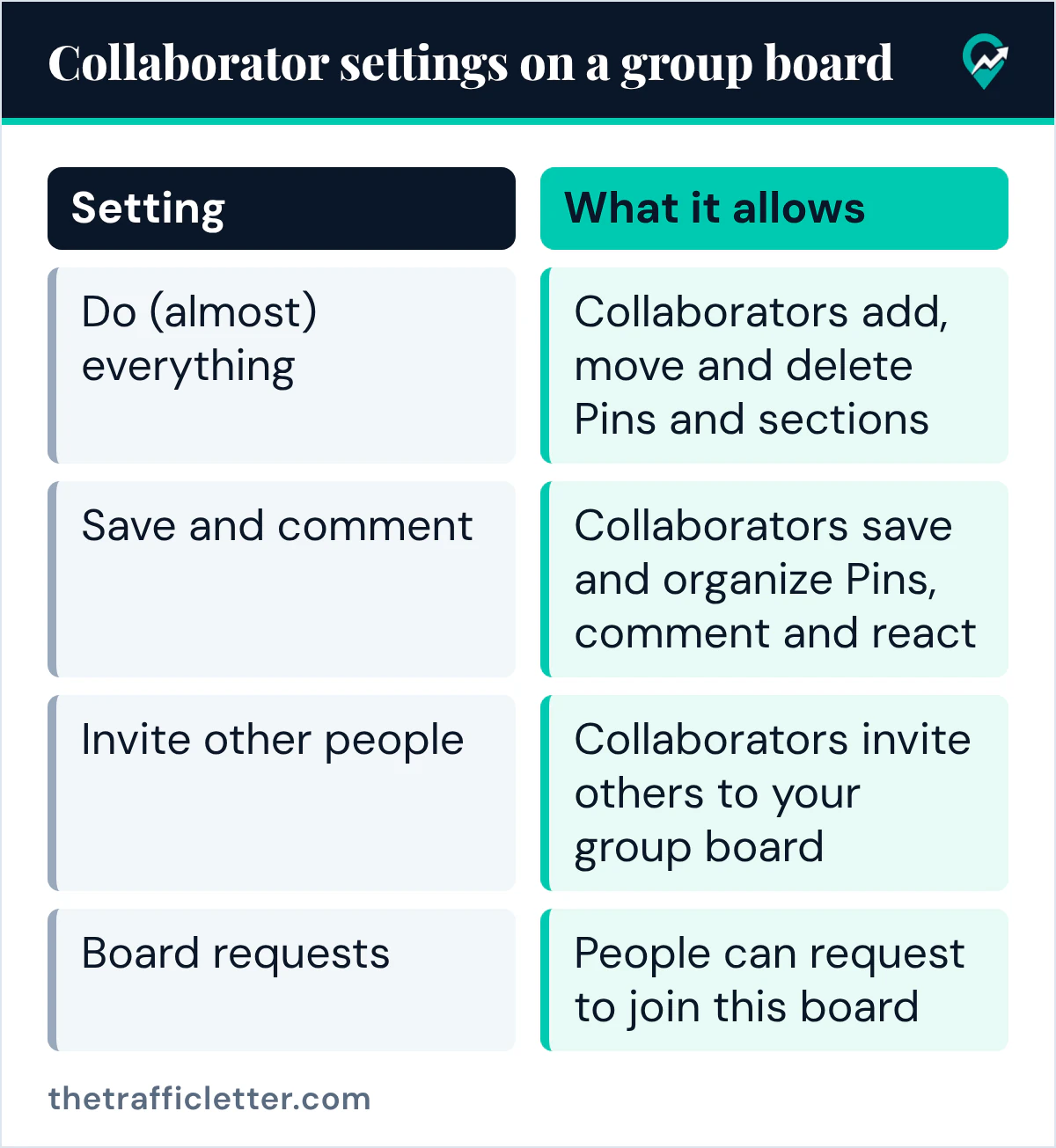
The owner sets the access level from the same plus circle icon. On a computer, the group boards page says to open the group board, click the plus circle icon above your Pins, click the directional chevron right icon next to Collaborators can, and choose:
| Setting | What it allows |
|---|---|
| Do (almost) everything | Collaborators add, move and delete Pins and sections, and comment and react |
| Save and comment | Collaborators save and organize Pins, comment and react |
| Invite other people | Collaborators invite others to your group board |
| Board requests | People can request to join this board |
Then click Done. In the app, the page names the request option People can request to join this board in one version and Board requests in another.
For a board tied to your blog, Save and comment is the safer start: collaborators save and organize Pins, and the page lists deleting Pins and sections under Do (almost) everything.
How to join a Pinterest group board
There are two ways in, according to the pages read for this guide.
An invite. The board owner invites you by name, username or email, or sends you the board’s Copy link. You get an email or a notification.
A request to join. Pinterest’s Request to join a board page says some boards will allow you to request to join, based on the board owner’s settings. On a computer:
- Log into your Pinterest account.
- Click the board you’d like to join to open it.
- Click Join at the top of your screen, below the board name.
The steps in the app are the same, with Tap. The page says that if your request is approved, you’ll receive an email and a push notification.
When you ask to join, the board should match a topic your blog really covers. Pins saved there link back to your posts, so an off-topic board sends clicks to the wrong readers.
Allow requests on your own board
The same page explains the owner side. On a computer, open the board, click the plus circle icon below the board name, click the directional chevron right icon next to Collaborators can, click the box next to Board requests, then click Done. This adds a Join button to the board. The page says you’ll receive an email and a push notification when someone requests to join, and you can accept or decline the request from your inbox.
How to find group boards on Pinterest
The Pinterest help pages read for this guide describe two routes, the invite and the Join button above; they do not mention a search filter or directory for group boards. In practice:
- Open the boards of bloggers who write about your niche and look for the Join button below the board name.
- Ask bloggers you already know whether they run a board you could contribute to, and send them the topics you cover.
- Start your own group board on your main topic and invite people, with the steps above.
Remove collaborators or leave a group board
As the owner. The group boards page says to open the board, click the profile pictures at the top of the page, below the board name, click Remove next to the collaborator, then click Remove to confirm. In the app, tap the x icon next to the collaborator, then tap Remove.
As a collaborator. Pinterest’s Leave a group board page says you can leave a group board if you’ve been invited to be a collaborator. On a computer, open the group board, click the group of profile pictures below the board name, click Leave next to your name and click Leave again to confirm. In one app version you tap the cancel icon next to your name, then Leave board.
If you own the board and want it gone, the page says you can delete it just as you would any other board. Our guide to deleting or archiving a Pinterest board (opens in a new tab) has those steps.
Right after
- Name the board and write its description first, then invite collaborators, with the steps for creating a board from scratch (opens in a new tab).
- Send the board to the bloggers you want on it, using our steps to share a board by link (opens in a new tab).
- Check the access level once the first collaborators have joined, and switch to Save and comment if Pins or sections get deleted without your say.